
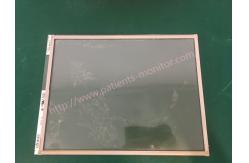
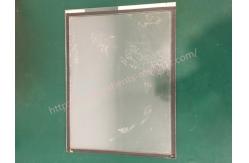
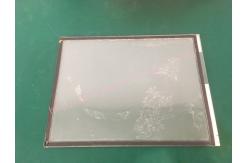
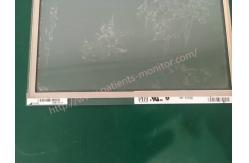
PHiliph MP40 Patient Monitor Refurbished Touch Screen E131992 J09L078118
|

|
PHiliphh MP40 Patient Monitor Refurbished Touch Screen E131992 J09L078118
Touchscreen Calibration
To access the touchscreen calibration screen:
1 Enter service mode
2 Select Main Setup
3 Select Hardware
4 Select Touch Calibration
Perform the calibration procedure without turning off the monitor. If the screen turns off after touching the first point, the touch screen will be disabled until touch calibration is performed again. If you calibrate the touchscreen incorrectly by selecting the wrong location, you will need to re-enter calibration mode using a different input device. If you have a support device, you can choose to reset touch calibration to the default. This creates an approximate calibration that allows you to return to the calibration menu from the touch screen.
Integrated Touch Display not functioning
1.Touch Screen not functioning
2.Invalid touch position
Disable/enable touch actions There are two ways to disable/enable the touchscreen functionality: 1. Press and hold the home button to temporarily disable the touchscreen functionality. A padlock symbol appears on the key. Press and hold the home button again to reactivate the touchscreen function. 2. To permanently disable the touchscreen: A. Enter service mode. B. Select main settings C. Select User Interface D. Change Enable Touch to no. Set Enable Touchscreen to Yes to re-enable touchscreen functionality
Removing the Touchscreen
1 Remove the front and back of the monitor as above. 2 Remove the touch controller board, press the connector safety latch, and disconnect the touch sensor cable. Note Both the touch screen and touch controller board must be replaced for the monitor to function properly. Assembly Note: First connect the touch sensor cable to the touch controller board, then reinstall the touchpad.
3. Remove the two screws securing the power button and LED board and remove the board. Plates and screws are part of the flex panel adapter cable. Note The screws that secure this plate are self-tapping screws. When reinstalling, first turn it in the opposite direction. 4. Remove the 8 screws, loosen the 2 clips on the monitor frame and carefully remove the monitor assembly. NOTE: It is recommended that this procedure be performed in a dust-free environment. The touchscreen display assembly can be difficult to remove due to the gaskets (tape) holding the two together. 5 Remove the touch screen (sensor) from the frame. Note This operation can be difficult due to the seams (bands). Assembly Note: When viewing the touch screen from the rear, the touch sensor cable must be facing to the right when placing the touch screen back into the monitor housing. Note Both the touch screen and touch controller board must be replaced for the monitor to function properly.
If you're interested in PHiliphh MP40 Patient Monitor Refurbished Touch Screen E131992 J09L078118 ,feel free to contact us .Thank you . |
||||||||||||||||||||
| Product Tags: Patient Monitor Refurbished Touch Screen E131992 Refurbished Touch Screen J09L078118 Refurbished Touch Screen |
|
Mindray Patient Monitor Battery LI13I001A Suit For Ipm5 Ipm8 Ipm10 Ipm12 IMEC5 IMEC8 IMEC10 IMEC12 New |
|
051-000943-00 Patient Monitor Spo2 Board Mindray T1 IPM12 IPM10 IPM8 Imec8 Imec10 Imec12 |
|
Patient Monitor Printer Recorder TR60-F Mindray IMEC7 IMEC8 IMEC10 IMEC12 IPM8 IPM9 IPM10 IPM12 MEC T5 T6 T8 Series |
|
PHiliph MX400 MX450 MX Series Patient Monitor AC/DC IV2-FLEX ASSY-PWR AC / DC Power Supply 453564281221 |
|
P/N 453564271711 PHiliph MX400 Mx450 MX Series Patient Monitor Mainboard |
|
MX450 Patient Monitor Battery Board Power Supply Hospital Equipment |